

If you’ve ever printed multiple copies of a document, you’ve probably seen a checkbox labeled “Collate” in the print settings. Many people ignore it because they’re unsure what it does, while others accidentally leave it turned off and end up with stacks of pages that need to be sorted by hand. Collate printing is one of the most useful but misunderstood printer settings.
This guide explains what collating means when printing, how it works, when to use it, where to find the setting on different devices and software, and how collating affects printing speed, finishing options, and professional print jobs.
What Does Collate Mean When Printing?
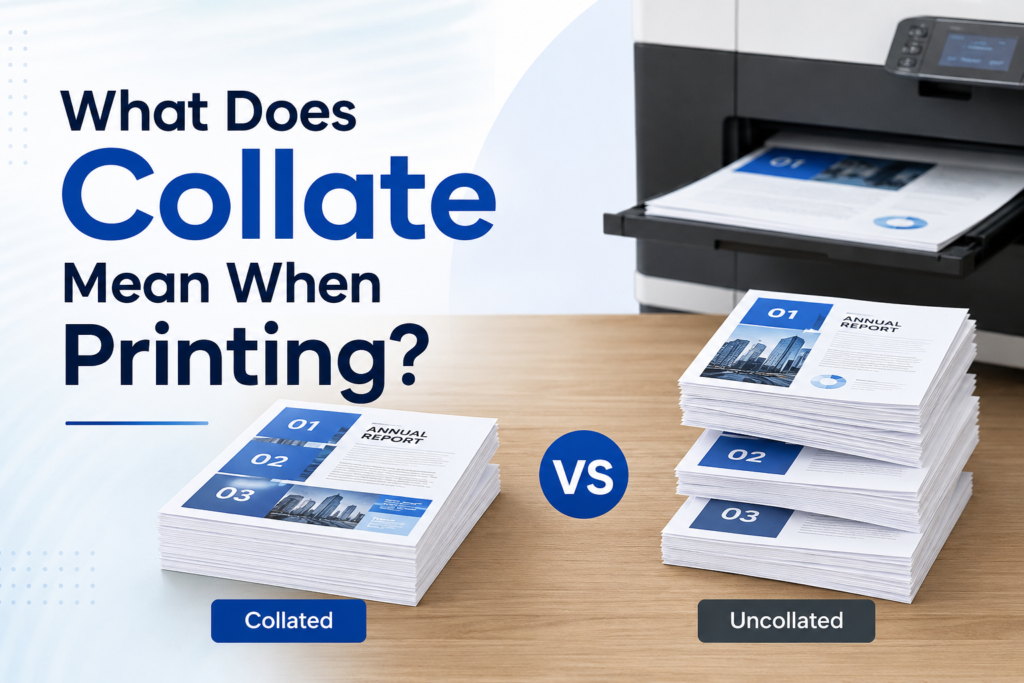
“Collate” means arranging printed pages into complete document sets in the correct page order. Imagine you have a 5-page document and need 3 copies.
- With Collate ON
The printer produces:
- Copy 1: Pages 1, 2, 3, 4, 5
- Copy 2: Pages 1, 2, 3, 4, 5
- Copy 3: Pages 1, 2, 3, 4, 5
Each copy is already organized and ready to distribute.
- With Collate OFF
The printer produces:
- Page 1 × 3 copies
- Page 2 × 3 copies
- Page 3 × 3 copies
- Page 4 × 3 copies
- Page 5 × 3 copies
You must manually sort the pages into complete sets afterward.
What Does the Word “Collate” Actually Mean?
The word “collate” comes from the Latin word collatus, meaning “to bring together” or “assemble.”
Long before modern printers existed, bookbinders and manuscript makers used collating to organize pages into the correct sequence before binding books.
Today, the printing industry uses the same concept when arranging pages into complete document sets.
How Does Collate Printing Work?
When collating is enabled, the printer organizes pages into finished document copies rather than printing all copies of each page at once.
For example:
- Document Length: 5 Pages
- Number of Copies: 4
Collated Output
1-2-3-4-5
1-2-3-4-5
1-2-3-4-5
1-2-3-4-5
Uncollated Output
1-1-1-1
2-2-2-2
3-3-3-3
4-4-4-4
5-5-5-5
Collating eliminates the need to manually assemble pages after printing.
When Should You Use Collate Printing?
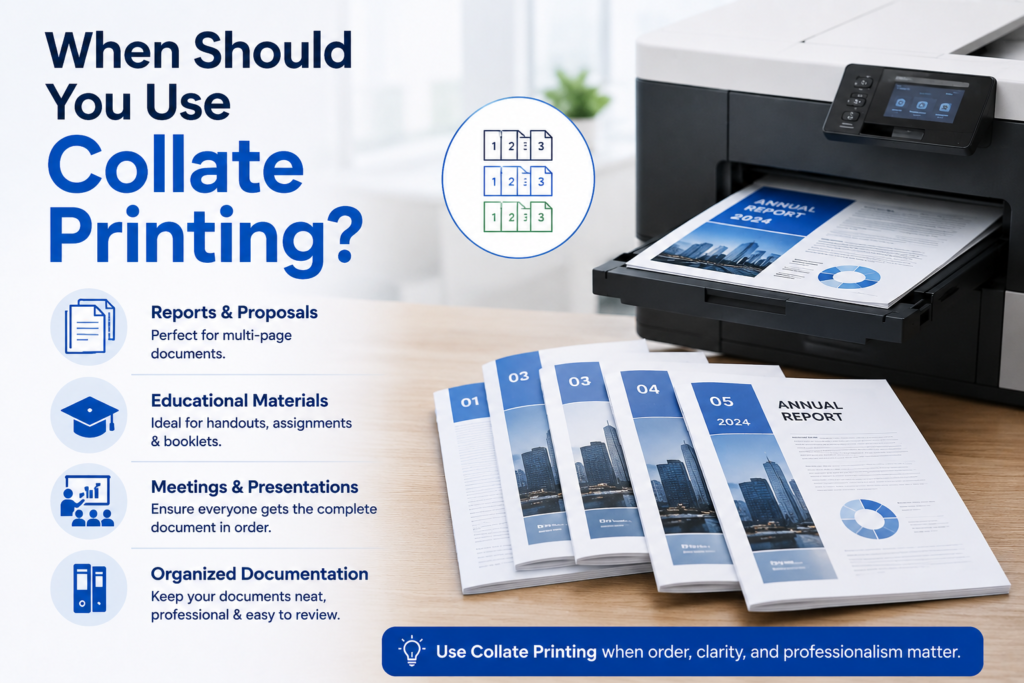
Collating is most useful whenever you’re printing multiple copies of a multi-page document.
Meeting Handouts
If you’re printing a 10-page agenda for 20 attendees, collating ensures each attendee receives a complete set.
Legal Documents
Contracts often require multiple copies for different parties. Collating keeps each copy organized and ready for signing.
School Assignments
Teachers printing worksheets or exams can distribute complete packets immediately.
Training Manuals
Employee onboarding materials often contain multiple pages that must remain in sequence.
Reports and Presentations
Business reports become easier to distribute when each copy is already assembled.
When Does Collation Not Matter?
Collating provides no real benefit when printing only a single-page document.
Examples include:
- Flyers
- Posters
- Business forms
- Single-page announcements
- Coupons
Since there’s only one page, there is no page sequence to organize.
Collate vs Uncollate: What’s the Difference?
Collated printing outputs complete document sets in the correct page order, while uncollated printing groups all copies of each page together before moving to the next page.
The table below highlights the key differences between collated and uncollated printing. Understanding these differences can help you choose the right print setting based on how you plan to organize and distribute your documents.
| Feature | Collated | Uncollated |
| Page Order | Completed Document sets | Groups of identical pages |
| Best For | Reports, manuals, contracts | Bulk page distribution |
| User convenience | High | Low |
| Typical Office Use | Very common | Less common |
| Manual Sorting | No | Yes |
Collated printing saves time by producing complete document sets in the correct order, making it ideal for reports, manuals, and presentations. Uncollated printing is more suitable when you need large quantities of the same page together, such as handouts or bulk distribution materials.
How to Enable Collate Printing in Windows?
Many users search for collate because they cannot find the setting.
Steps
- Open the document.
- Press Ctrl + P.
- Select your printer.
- Increase the number of copies above 1.
- Look for the Collate checkbox.
- Check the box.
- Click Print.
Most modern Windows systems automatically enable collating when printing multiple copies.
How to Enable Collate Printing on Mac?
To enable collated printing on a Mac, follow these steps:
Steps
- Open the file.
- Press Command + P.
- Select your printer.
- Enter the number of copies.
- Locate the Collated option.
- Ensure it is checked.
- Print the document.
MacOS typically enables collating by default for multi-copy jobs.
How to Collate in Microsoft Word?
Microsoft Word includes its own print settings in addition to your printer settings.
Steps
- Click File.
- Select Print.
- Enter the desired number of copies.
- Locate the Collated option.
- Choose Collated.
- Print.
Word usually remembers the last selected setting.
How to Collate in Google Docs?
To enable collated printing in Google Docs, follow these steps:
Steps
- Open the document.
- Click File → Print.
- Enter the number of copies.
- Open More Settings if needed.
- Enable Collate.
- Print.
The exact location may vary slightly depending on your browser and operating system.
How to Collate PDF Files in Adobe Acrobat?
To collate PDF files in Adobe Acrobat, follow these steps:
Steps
- Open the PDF.
- Press Ctrl + P.
- Increase copies above one.
- Locate the Collate option.
- Enable it.
- Print.
In some versions of Acrobat, the collate option appears only after selecting multiple copies.
How to Use Collate in Google Chrome?
When printing web pages directly from Chrome:
Steps
- Press Ctrl + P.
- Increase the copy count.
- Expand More Settings.
- Enable Collate if available.
- Print.
Chrome may inherit settings from the operating system’s print dialog.
Collate Printing on Mobile Devices
Modern smartphones support collated printing through wireless printing systems.
iPhone and iPad (AirPrint)
- Open the document.
- Tap Share.
- Select Print.
- Choose the printer.
- Select the number of copies.
- AirPrint typically collates automatically.
Android Devices
- Open the file.
- Tap Print.
- Choose copies.
- Access advanced settings.
- Enable collate if available.
The location varies by manufacturer and printing app.
Collate on Photocopiers and Multifunction Printers (MFPs)
Most online guides ignore copier-based collating, even though millions of users encounter it daily. Large office copiers often include collate settings directly on the touchscreen.
Common brands include:
- Canon
- Xerox
- HP
- Ricoh
- Konica Minolta
- Sharp
Typically, collate appears under:
- Copy Settings
- Finishing Options
- Output Settings
- Sort Functions
When making photocopies, collating works similarly to print jobs by organizing complete document sets automatically.
Collate vs. Sort: Are They the Same?
Many printer manufacturers use different terminology.
| Term | Meaning |
| Collate | Organize pages into complete sets |
| Sort | Often identical to collate |
| Group | Usually uncollated output |
Some Canon and Konica Minolta devices use “Sort” instead of “Collate.” Always check the output preview if you’re unsure.
Collate, Staple, and Hole-Punch: How They Work Together
Collating becomes especially important when using finishing features.
Example
You print:
- 25 copies
- 12 pages each
- Stapled
If collate is OFF:
The printer cannot create proper document sets for stapling.
If collate is ON:
Each 12-page document is assembled first and then stapled correctly.
The same principle applies to:
- Hole punching
- Booklet creation
- Folding
- Binding
Most professional office printers require collating before finishing options can work properly.
Does Collating Make Printing Slower?
Yes, sometimes. Collating requires additional processing because the printer must organize complete document sets.
Small Documents
The speed difference is usually negligible.
Large Documents
Collating can slow printing because
- More memory is required
- Pages must remain organized
- Additional processing occurs before output
Why Do Some Printers Slow Down When Collating?
Lower-end printers often have limited RAM. When printing large collated jobs:
- The printer stores document data.
- Pages are organized into sets.
- Output is generated in sequence.
Enterprise printers often include:
- Internal hard drives
- Additional RAM
- Advanced print controllers
These features reduce collating delays significantly.
Collate Printing in Commercial Print Shops
Collating is not limited to office printers. Commercial print shops use collating during finishing and bindery operations.
Examples include:
- Booklets
- Catalogs
- Manuals
- Magazines
- Training guides
In-Line Collating
Pages are assembled automatically during production.
Off-Line Collating
Printed pages are transferred to a separate collating machine for assembly.
When ordering printed materials online, “collated copies” generally means complete sets ready for use of any type.
Benefits of Collate Printing
You might be wondering about its benefits, right? Collate printing offers several advantages for businesses, schools, offices, and home users. Instead of manually sorting pages after printing, the printer automatically organizes documents into complete sets, saving time and reducing errors.
Saves Time
Collated documents come out in the correct page order, eliminating the need to manually assemble multiple copies. This is especially useful for reports, presentations, and training materials.
Reduces Human Errors
Manual sorting increases the risk of missing pages or mixing documents. Collating ensures every copy contains the complete document in the proper sequence.
Improves Workplace Efficiency
Employees can immediately distribute meeting agendas, contracts, manuals, and handouts without spending extra time organizing pages.
Works Seamlessly with Stapling and Binding
Most printers and copiers require collated output before applying finishing options like stapling, hole punching, booklet creation, or binding.
Ideal for Large Print Jobs
Whether printing 20 employee handbooks or 100 classroom packets, collating keeps documents organized and ready for distribution.
Creates a More Professional Presentation
Well-organized document sets look more professional and help recipients follow information without dealing with misplaced or out-of-order pages.
Simplifies Educational and Training Materials
Teachers, trainers, and instructors can quickly prepare lesson packets, exams, and study guides without manually sorting hundreds of pages.
Supports Commercial Printing Projects
Print shops use collating to assemble catalogs, manuals, brochures, and booklets efficiently before finishing and packaging.
Reduces Post-Printing Labor
Since documents are already assembled, less time and effort are required after printing, which can improve productivity in busy office environments.
Enhances Document Management
Collated copies are easier to distribute, store, review, and archive because each set remains complete and organized from the moment it leaves the printer.
Common Problems with Collate Printing
Even modern printers occasionally experience collating issues.
Printer Ignores Collate Setting
Possible causes:
- Outdated drivers
- Printer firmware issues
- Software conflicts
Solution
Update drivers and firmware.
Collate Option Is Greyed Out
This often happens when:
- Only one copy is selected
- Printer drivers are outdated
- Certain print modes are active
Solution
Increase copies above one and recheck settings.
Network Printer Loses Collate Settings
Shared printers sometimes inherit administrator settings.
Solution
Verify settings directly within the print dialog before each job.
PDF Files Print Incorrectly
Some PDF workflows may override print settings.
Solution
Print through Adobe Acrobat rather than browser-based PDF viewers.
Final Thoughts
Collate printing is a simple feature that can dramatically improve document organization and workflow efficiency. Instead of producing stacks of identical pages that require manual sorting, collating automatically assembles complete document sets in the correct order.
By learning where to find the setting, when to use it, and how it interacts with finishing options such as stapling and hole punching, you’ll be able to get the most from both home and office printing systems.
FAQs
Should collate be on or off?
For most multi-page documents, collate should be ON.
Is collate enabled by default?
Most modern Windows, Mac, and office printers enable collating automatically when printing multiple copies.
Does collating affect print quality?
No. It only affects page order.
Does collating use more ink or toner?
No. The same number of pages is printed regardless of collation.
Can I collate while stapling?
Yes. In fact, most printers require collated sets before stapling can be applied properly.
What is the difference between “collate” and “sort”?
Many printer manufacturers use the terms interchangeably, although some systems may assign slightly different meanings.